PNG to JPG: Why Transparency Turns into a Background
Understand why JPEG cannot keep a transparent background. Choose PNG or WebP for alpha, or flatten onto a deliberate background before making a JPG.
Use this guide with
2 ToolsWebPro tools
Open the free tool(s) below and follow the steps in this guide.
A checkerboard is a preview, not a JPEG feature
A transparent PNG can contain pixels with partial or zero opacity. JPEG does not carry the same alpha channel. Converting that image to JPG must produce opaque pixels, so something has to appear behind a previously transparent logo or cutout.
A preview checkerboard simply helps you see transparency in an editor. It is not meant to become part of the picture. If a converted file shows white, black or a visible checkerboard, inspect whether the background was flattened deliberately, supplied by the tool or already baked into the original pixels.
Choose the output around the intended use
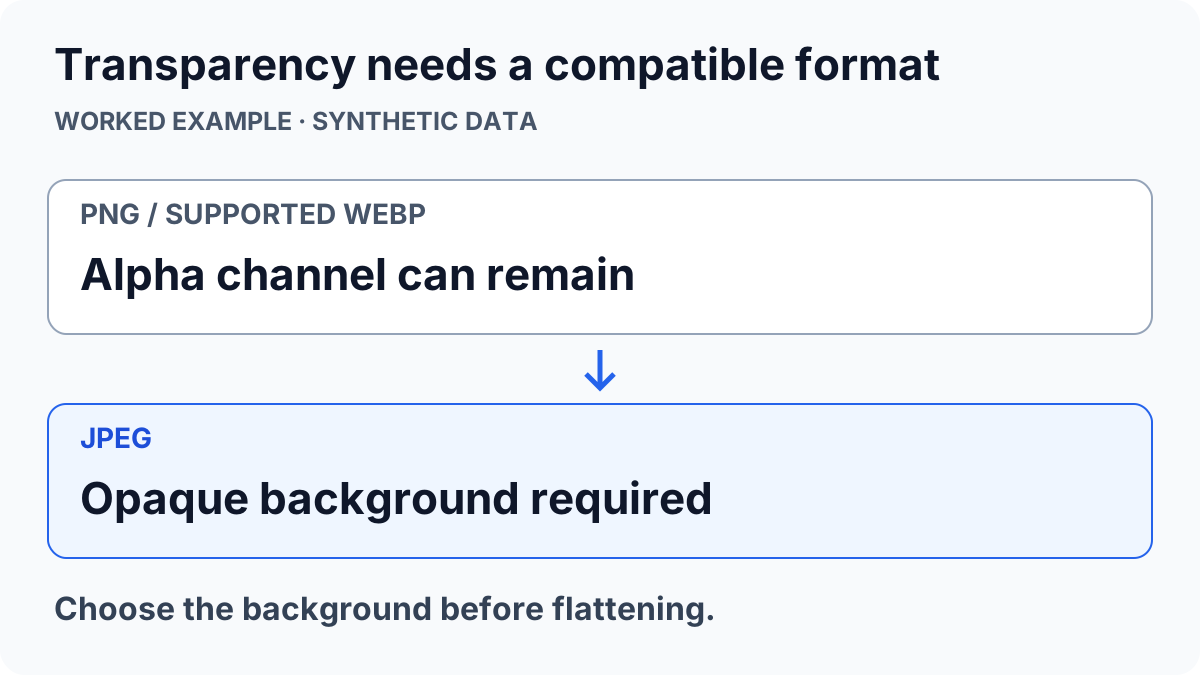
Keep PNG when you need an alpha background for a logo, overlay or UI element. WebP can also support transparency when the destination accepts it. Choose JPEG for an opaque image when its compression and compatibility fit the job. An extension change alone does not alter the underlying encoding.
The browser export method used by many image tools creates a new encoded image; supported formats and quality controls depend on the browser. MDN’s canvas export documentation explains that relationship. Keep the original until the output’s actual format, dimensions and appearance have been checked.
Test edges on the real background
Open a small transparent sample in the photo converter. Export a PNG copy and compare it on light and dark backgrounds. Then compare a JPG only if an opaque version is acceptable. Fine hair, antialiased text and drop shadows can show halos when the assumed background differs from the final design.
If a particular background color is required, flatten the image onto that color in an editor before exporting JPEG. Do not assume an automatic conversion chooses your brand color or can reconstruct hidden pixels. For a JXL source with transparency, choose PNG output in the JXL converter when alpha needs to survive.
Verify the delivered file, not only the preview
Download the chosen copy, check that it saved, then open that file independently. Confirm pixel dimensions and inspect the edges at full size. A browser preview can place a transparent image against a background that makes a defect hard to notice.
Conversion can also alter color handling or other file information. Keeping transparency does not mean every source feature or metadata field is preserved. Use a separate copy for delivery and retain the original artwork for future edits. If the converted file is unexpectedly larger, use the image-size troubleshooting guide before repeatedly re-encoding it.
ToolsWebPro
Practical tool documentationWorkflow examples, tool limitations and links to primary format and platform documentation.
Read full author bio & credentials →Related ToolsWebPro tools
Open the free tool(s) for this guide — no signup required.
- Photo ConverterConvert JPG, PNG, WebP, and BMP images online free — private browser conversion, no signup.
- JXL to JPG ConverterOpen JPEG XL images, compare the output, and save JPG, PNG or WebP copies without uploading the image files.
More from ToolsWebPro