Why Is My Compressed Image Bigger Than the Original?
Check format, quality and dimensions when image compression makes a larger file. Compare actual output bytes and preserve the original when the result is worse.
Use this guide with
3 ToolsWebPro tools
Open the free tool(s) below and follow the steps in this guide.
Compression is a new encoding, not a size guarantee
An image compressor decodes pixels and writes another encoded file. The original may already be efficiently compressed. Choosing a different format, a higher quality or lossless output can produce more bytes even when the picture looks unchanged.
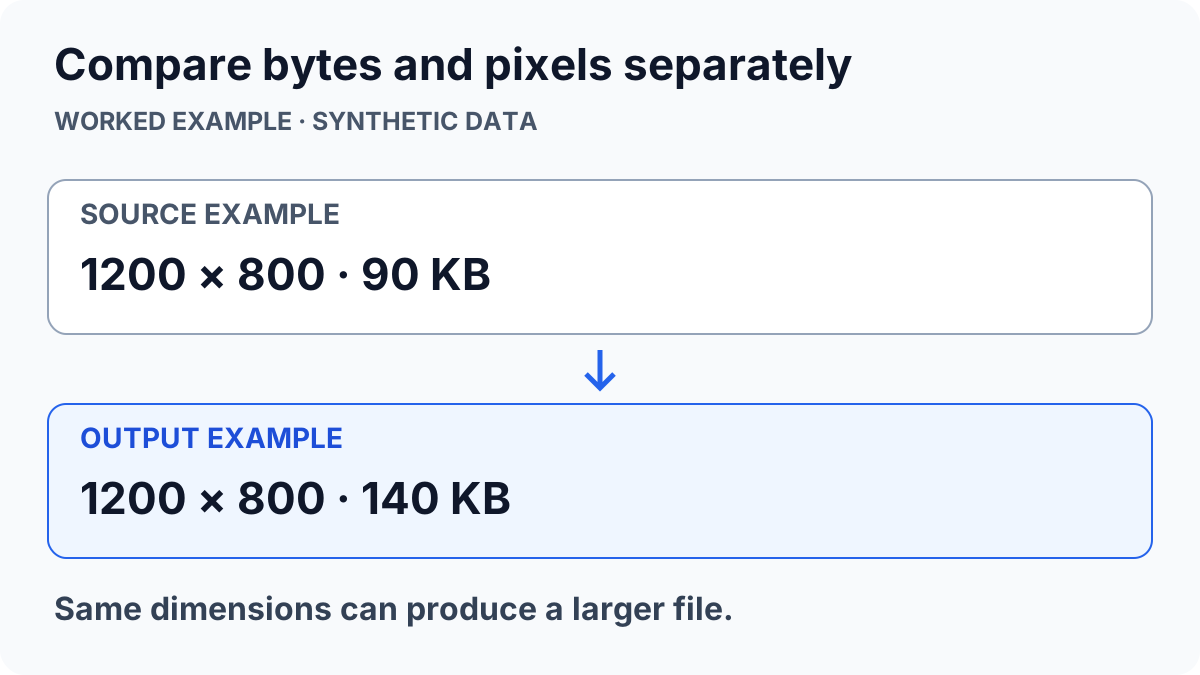
File size and pixel dimensions are different measurements. A 1200 × 800 image can have several file sizes depending on its contents and encoding. A flat icon behaves differently from a photograph with noise and fine texture. Compare the actual original and output bytes instead of assuming that pressing Compress must make the file smaller.
Check the output format first
Converting a compact JPEG photograph into PNG can increase size because PNG encodes the decoded pixels differently. A quality slider is meaningful only for formats and encoders that use it; browser canvas export does not apply a JPEG-style quality choice to PNG in the same way. See MDN’s image export reference.
For a photo, try an appropriate JPEG or WebP quality and compare detail. For a graphic that needs transparency, test PNG or supported WebP output instead of discarding the alpha channel just to chase a smaller number. The transparency guide explains that separate tradeoff.
Change one setting and inspect a new result
In the image compressor, start with one synthetic or non-sensitive image. Compare quality-based output with a target-size attempt. If resizing is allowed, confirm that the resulting dimensions still meet the destination’s needs. Reaching a byte target by shrinking the image may make small text illegible.
A target can be unattainable under the selected constraints. Review any unmet-target notice and inspect the actual result size. Do not describe a file as under a limit until the saved output is measured. The tool’s preview or a started download does not prove the final file was saved to your device.
Keep the better source when there is no improvement
Compare a detailed area, text edges and gradients at full resolution. If the new version is larger without a needed format change or visible benefit, keep the original. Repeatedly recompressing the last JPEG can add artifacts; start comparisons from the same original instead.
Use the photo resizer when pixel dimensions are the real requirement, or the photo converter when a destination accepts only a particular format. Neither a smaller file nor a successful upload proves that metadata was removed, an AI label will disappear or the image is suitable for every platform.
ToolsWebPro
Practical tool documentationWorkflow examples, tool limitations and links to primary format and platform documentation.
Read full author bio & credentials →Related ToolsWebPro tools
Open the free tool(s) for this guide — no signup required.
- Image CompressorCompress images to 20, 50, 100 or 200 KB, process a batch, and download a ZIP. JPG, PNG and WebP, privately in your browser.
- Photo ConverterConvert JPG, PNG, WebP, and BMP images online free — private browser conversion, no signup.
- Photo ResizeResize images to exact pixel dimensions or percentage online — keep aspect ratio, no upload to servers, free.
More from ToolsWebPro