Duplicate Events After Calendar Import: Diagnose the Source
Find whether duplicate calendar events come from repeated imports, an active subscription or changed IDs. Test safely without deleting a working calendar.
Use this guide with
2 ToolsWebPro tools
Open the free tool(s) below and follow the steps in this guide.
Check which calendars contain the copies
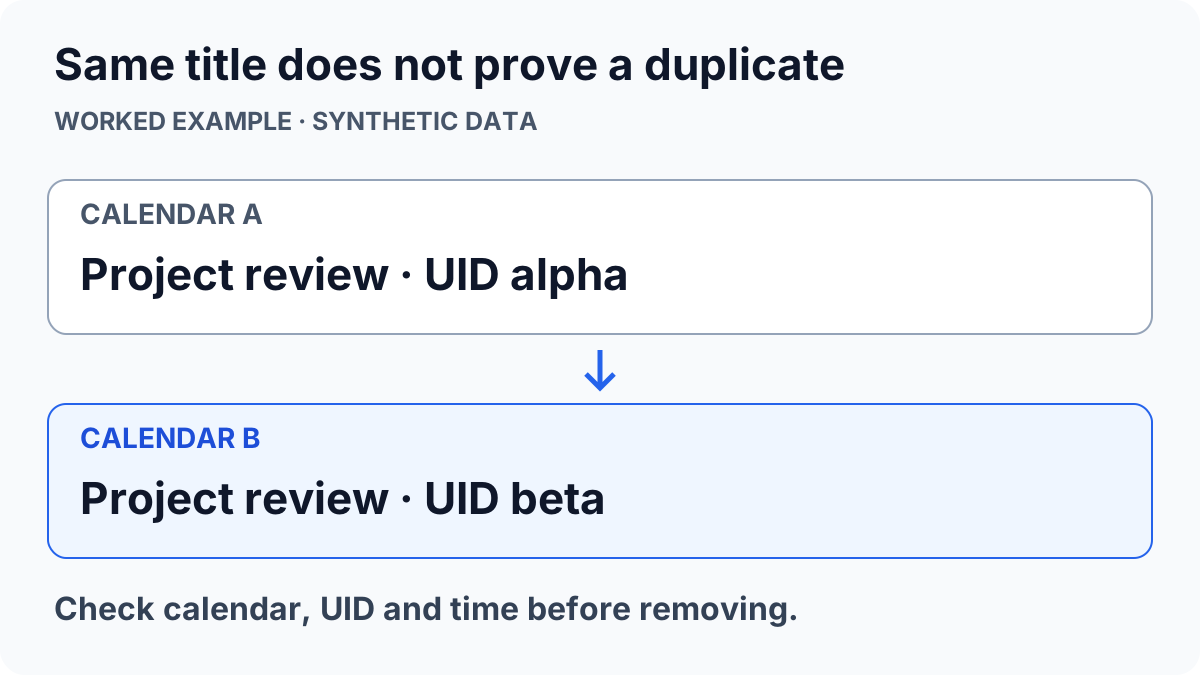
Two events with the same title are not always two copies inside one calendar. One may belong to a subscribed calendar and the other to a manual import. Display one calendar at a time, then inspect the calendar name on each copy before attempting another import.
Write down the source, destination and import method. Importing an ICS file is different from subscribing to a calendar URL. An import is a snapshot; a subscription can continue receiving updates. Google explains this distinction in its calendar import documentation.
Stop repeated imports while diagnosing
Keep a backup and use a separate test calendar for the next attempt. If an import appears slow, inspect the calendar before clicking Import again. Google’s import troubleshooting page explains that a second click can also report zero processed events because the earlier import already succeeded.
Do not delete an entire main calendar as a quick fix. First determine whether the extra entries came from a second calendar, a repeated file import or multiple records in the source. Those causes have different remedies, and a bulk delete can remove appointments you cannot reconstruct.
Compare identifiers and times, not titles alone
A calendar event’s UID is intended to identify the event. In the original .ics text, compare UID, DTSTART and any RECURRENCE-ID for two apparent copies. Recreating exports with different UIDs can make the receiving application treat them as distinct events. Two meetings can legitimately share a summary, so summary text alone is an unsafe deduplication key.
The ICS/CSV converter can make a calendar easier to inspect as rows. Treat the table as an inspection aid, not an automatic duplicate remover or a promise that all recurrence exceptions will round-trip. Keep the ICS original if you need to preserve the source event structure.
Use a controlled test and a documented repair
Create one synthetic appointment in a disposable calendar. Export it once, import that file into another disposable calendar and count the visible records. Then compare a second export to see whether identifiers were retained. This isolates the particular source and destination without risking your real schedule.
After identifying the cause, remove only confirmed extra records or disable the redundant display/subscription through the calendar application’s own controls. Changes made inside a spreadsheet do not automatically update the original calendar. Use the ICS creator for a new one-off event and the conversion guide when you need a file workflow. This guide does not modify any calendar account.
ToolsWebPro
Practical tool documentationWorkflow examples, tool limitations and links to primary format and platform documentation.
Read full author bio & credentials →Related ToolsWebPro tools
Open the free tool(s) for this guide — no signup required.
- ICS to CSV ConverterInspect calendar events in a spreadsheet or map a CSV/XLSX schedule into an ICS file, with a preview before export.
- ICS File CreatorCreate one calendar event, preview its .ics text, and download a file to import into your calendar app.
More from ToolsWebPro