ICS All-Day Event on the Wrong Date? Check DTEND
Understand exclusive all-day end dates and time-zone differences in ICS calendars. Use a one-day sample before changing an entire calendar export.
Use this guide with
2 ToolsWebPro tools
Open the free tool(s) below and follow the steps in this guide.
First identify an all-day date or a timed instant
An all-day calendar entry is a date-based event, not automatically a midnight meeting in a particular time zone. A timed event can move on the calendar when its instant is displayed in another zone. These two situations need different fixes, even when both appear as a one-day shift.
Work from a copy of the original .ics file. Search for the affected event’s DTSTART and DTEND properties. A value such as DTSTART;VALUE=DATE:20261026 identifies a date. A value with a clock and a Z suffix describes UTC. Do not remove the time zone suffix or add 24 hours to every event as a general repair.
Read an exclusive end date correctly
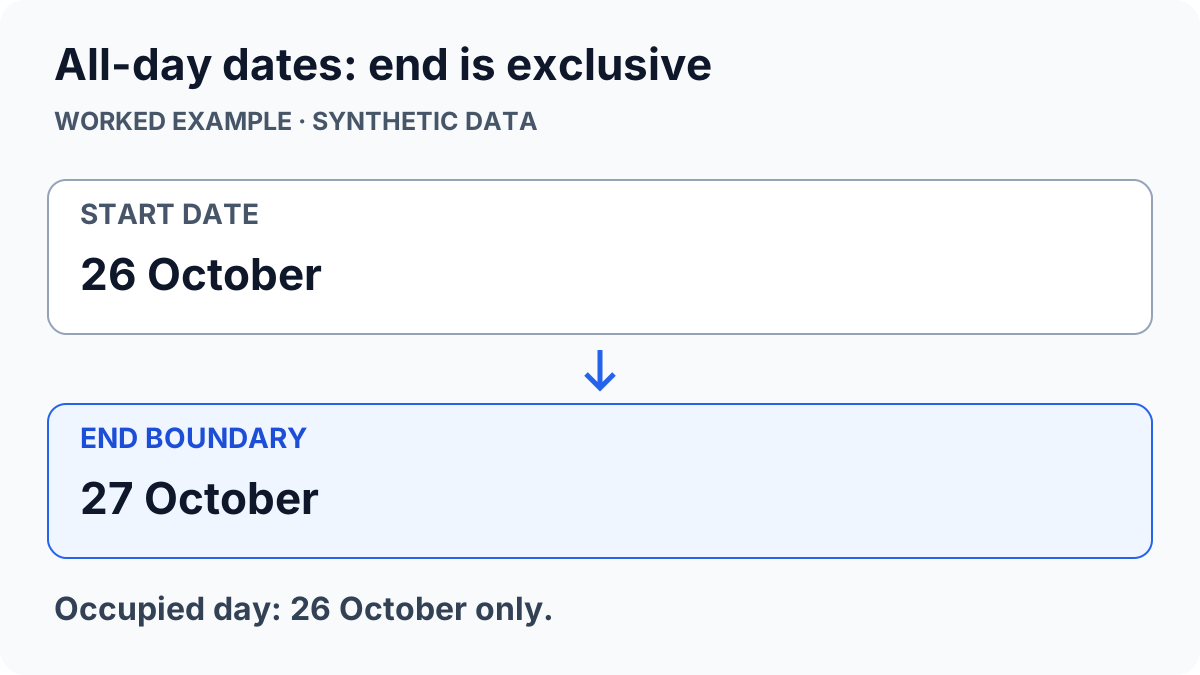
In RFC 5545’s event definition, DTEND is a non-inclusive end. A date-based event that starts on 26 October and ends on 27 October covers 26 October. The end date is the boundary after the last occupied date, not an extra displayed day.
A two-day all-day event covering 26 and 27 October therefore has an end boundary of 28 October. A spreadsheet may instead show the last occupied date. Before comparing an ICS export with CSV, find out which convention the export columns use. Both representations can be correct when their labels explain the difference.
| DTSTART date | DTEND boundary | Occupied dates |
|---|---|---|
| 20261026 | 20261027 | 26 October only |
| 20261026 | 20261028 | 26 and 27 October |
Test a one-event copy before a bulk conversion
Create one synthetic all-day event in a spare calendar and export it. Compare its displayed date with its date properties. Open the file in the ICS/CSV converter to inspect the extracted fields; preserve the original rule and date values while diagnosing the issue.
If you need a new standalone invitation, the ICS file creator can create an all-day test event. Import it into a disposable test calendar and confirm the occupied day. This test is a check of that scenario, not certification that every calendar handles every recurrence or time zone identically.
Keep timed-event and recurrence fixes separate
For timed entries, compare the source zone, the export’s zone notation and the destination calendar’s display zone. Daylight-saving changes can alter the offset for particular dates. A fixed-hour adjustment applied across the whole year can introduce a second mistake.
Recurring events may also contain exceptions or changed instances. Do not edit only the series start and assume every occurrence is repaired. Keep a backup, check one event around a time-change boundary, and use the calendar conversion guide for the broader workflow. A readable conversion is not proof that an import preserved all calendar semantics.
ToolsWebPro
Practical tool documentationWorkflow examples, tool limitations and links to primary format and platform documentation.
Read full author bio & credentials →Related ToolsWebPro tools
Open the free tool(s) for this guide — no signup required.
- ICS to CSV ConverterInspect calendar events in a spreadsheet or map a CSV/XLSX schedule into an ICS file, with a preview before export.
- ICS File CreatorCreate one calendar event, preview its .ics text, and download a file to import into your calendar app.
More from ToolsWebPro