Browser-Based Tools vs Cloud Upload: Which Protects Your Files?
Are online file tools safe? Discover how client-side browser processing protects your PDFs, images, and documents from cloud server leaks.
Use this guide with
11 ToolsWebPro tools
Open the free tool(s) below and follow the steps in this guide.
- •Overview
- •What actually happens when you upload a file to a "free" online tool?
- •What is client-side / in-browser processing?
- •Cloud-Upload Tools vs Client-Side Browser Tools
- •How to check if a tool is uploading your files without telling you
- •Which file tasks are safest to do in-browser?
- •Try it yourself — in-browser tools
- •Frequently Asked Questions
- •Conclusion
- •Example: removing photo metadata without uploading
Overview
Whether you need to compress a large PDF for an assignment, convert an image format for a web project, or edit a DOCX document on the go, free online tools offer unmatched convenience. However, millions of users upload sensitive personal documents, financial audits, and legal contracts without stopping to ask a fundamental question: where does my file actually go?
Behind the interface of every web utility lies an architectural choice: server-side cloud upload versus client-side browser processing. Understanding this distinction is the single most important factor in keeping your personal files secure online.
Direct Answer: Online file conversion tools are safe only when they execute operations locally inside client-side browser memory using technologies like WebAssembly and client-side JavaScript. Traditional converter portals that require uploading files to remote cloud servers expose sensitive documents to server logs, unauthorized cloud retention, and data breach risks.
What actually happens when you upload a file to a "free" online tool?
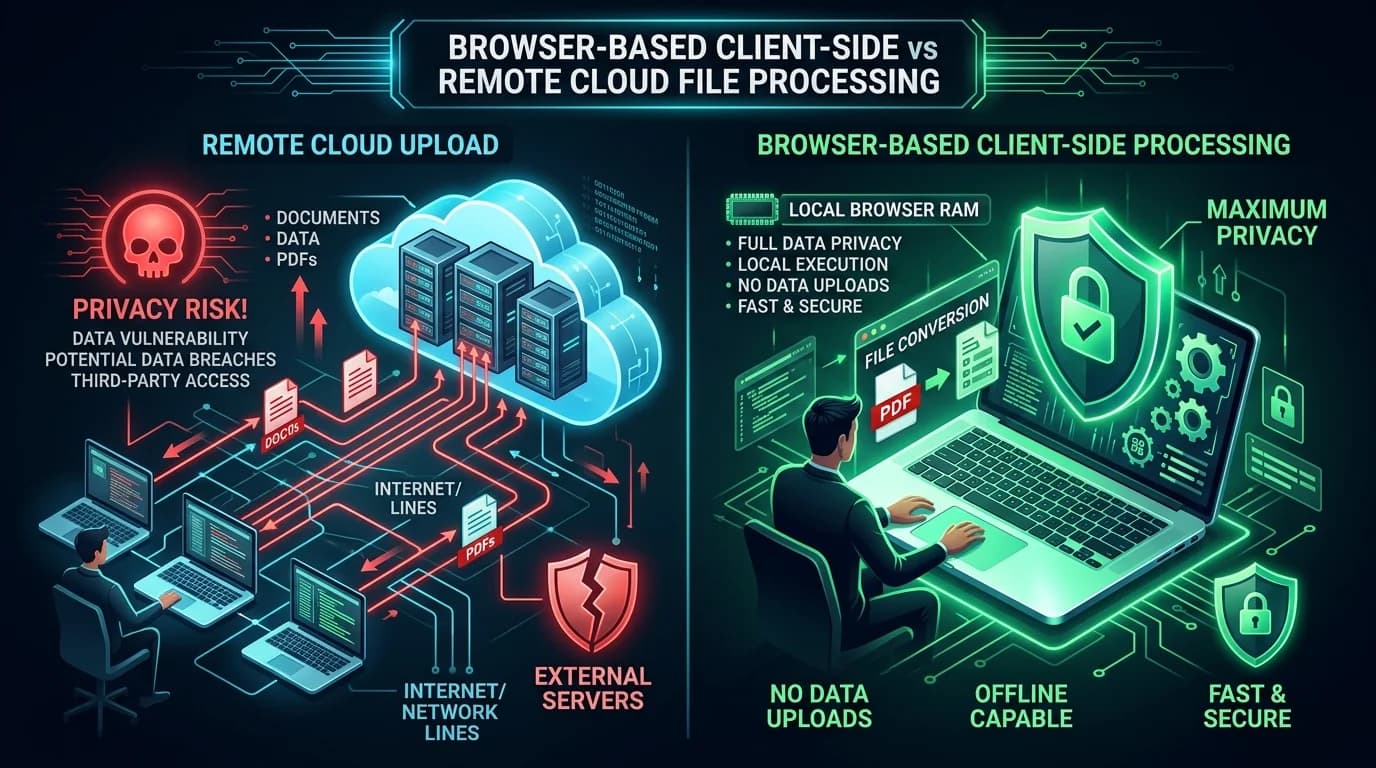
When you use a conventional cloud-upload file tool, clicking "Convert" or "Compress" initiates an HTTP payload upload across the internet. Your file is transmitted over external network routing lines to a third-party remote web server.
Once on the server, automated software processes your file, generates a new version, and creates a temporary download URL. While reputable websites claim to delete uploaded files after an hour, server caches, automated database backups, and employee access permissions create persistent security vulnerabilities.
If a cloud converter site suffers a security breach or misconfigures its storage buckets, your private tax records, contracts, or personal photos can be exposed to third parties.
What is client-side / in-browser processing?
Client-side (in-browser) processing represents a major shift in web privacy. Instead of sending your raw document across the internet to a remote machine, modern browser standards like HTML5, WebAssembly (Wasm), and Web Workers enable your own computer or smartphone to perform the file conversion locally.
When you drop a document into a browser-native utility, the file data enters your local RAM. The conversion logic runs on your local CPU and GPU. Your document never leaves your physical device, completely eliminating network interception, cloud logging, and third-party data breaches.
Cloud-Upload Tools vs Client-Side Browser Tools
The following table compares traditional cloud-upload portals against client-side browser utilities across key performance and security metrics:
| Security & Speed Vector | Traditional Cloud-Upload Tool | Browser-Based (Client-Side) Tool | User Privacy & Safety Impact |
|---|---|---|---|
| Where File is Processed | Remote Third-Party Cloud Server | Local Device RAM & CPU | Zero Exposure to External Servers |
| Does File Leave Your Device? | Yes (Uploaded over Internet) | No (100% Local Execution) | Eliminates Network Interception |
| Processing Speed | Slow (Limited by Upload Bandwidth) | Instant (Constrained only by Hardware) | Saves Time on Heavy Documents |
| Works Offline? | No (Requires Active Network Connection) | Yes (Supported once Page Loads) | Operates on Spotty Connections |
| Data Breach & Retention Risk | High (Stored in Temporary Server Caches) | Zero (No Server Storage Exists) | Guarantees Total Confidentiality |
Test private client-side file transformation using our free PDF Converter and Image Compressor.
How to check if a tool is uploading your files without telling you
You don't need a degree in computer science to verify whether a website uploads your confidential files. You can audit any online utility in under 30 seconds using your web browser's built-in developer tools:
1. Open Developer Tools: Press F12 (or Right-Click anywhere on the webpage and select Inspect) in Chrome, Firefox, Edge, or Safari.
2. Switch to the Network Tab: Click on the "Network" tab at the top of the developer panel.
3. Upload or Process a Test File: Drag a sample document or photo into the tool.
4. Inspect Network Activity: Watch the Network requests table. If the tool is client-side, you will see zero large file transfer requests or outbound POST data payloads to external domains. If you see a large upload bar transferring megabytes of data to an external server address, your file is being uploaded to the cloud.
To review industry privacy standards regarding cloud storage risks and user tracking disclosures, consult the EFF Privacy and Data Security Analysis [VERIFY LINK].
Which file tasks are safest to do in-browser?
Modern web browsers can execute complex media and document workflows locally with extreme speed and zero privacy compromises:
- PDF Merging, Splitting & Conversion: Reordering pages, extracting text, or converting documents using browser engines like PDF-Lib without cloud uploads.
- Image Compression & Resizing: Optimizing WebP, PNG, and JPG files directly in canvas RAM to reduce file size without quality loss.
- DOCX Document Editing: Modifying text, formatting tables, and saving word files without transmitting sensitive corporate text over network channels.
- Electronic Invoices & Financial Records: Inspecting XML invoices privately with the Peppol & UBL Invoice Viewer to prevent exposing confidential client and financial data to remote servers.
Try it yourself — in-browser tools
Experience lightning-fast execution and 100% data confidentiality with ToolsWebPro's suite of free client-side utilities:
Convert, split, and compress PDF documents privately with our PDF Converter. Optimize images for web publishing using our client-side Image Compressor. Edit and format documents securely using our browser-based DOCX & PDF Editor.
Frequently Asked Questions
Are online file conversion tools safe to use?
Online file tools are safe when they execute operations locally in browser memory via WebAssembly and JavaScript. Traditional tools that upload files to cloud servers expose documents to potential server logs and data retention risks.
What is the difference between client-side and server-side file processing?
Client-side processing transforms files locally on your device's CPU and RAM without uploading data over the internet. Server-side processing requires uploading your file to a remote cloud server to execute conversions.
How do I check if an online tool uploads my files to a server?
Open your web browser's Developer Tools (F12 or Right-Click > Inspect) and select the Network tab. Drag your file into the tool; if no large POST payload request is sent across the network, the tool operates entirely client-side.
Is it safe to upload password-protected or sensitive PDFs online?
Uploading sensitive PDFs to traditional cloud converters is risky due to server caching. However, client-side tools like ToolsWebPro PDF Converter process password-protected files strictly inside local browser memory, keeping your documents confidential.
Do browser-based tools work offline without an internet connection?
Yes. Once a client-side tool webpage finishes loading in your web browser, all transformation logic exists in local memory, allowing you to convert or edit files even if your internet disconnects.
Conclusion
Protecting your sensitive files online starts with choosing browser-native tools that respect data privacy by design. By processing documents locally inside browser memory, ToolsWebPro eliminates cloud security risks while delivering immediate hardware-accelerated speed.
Start processing files securely today by trying our PDF Converter, DOCX Editor, PDF Editor, PDF to DOCX Converter, and DOCX to PDF Converter.
Example: removing photo metadata without uploading
Metadata removal is a good example of why local processing matters: the file you want to clean may contain your GPS location. The AI Metadata Remover reads and cleans JPG, PNG, and WebP files entirely in your browser, removing EXIF, GPS, XMP, and C2PA data without sending the photo anywhere.
Open the tool:
Muhammad Saqlain
Cybersecurity Practitioner & Lead EngineerSecurity researcher, web developer, and founder of ToolsWebPro. Tests password entropy, GPU cracking speeds, and client-side encryption systems.
Read full author bio & credentials →Related ToolsWebPro tools
Open the free tool(s) for this guide — no signup required.
- PDF ConverterMerge multiple PDFs into one or extract pages online — private client-side PDF tools, free, no signup.
- Image CompressorCompress JPG, PNG, and WebP images online without losing visible quality — see before/after sizes, free.
- AI Metadata RemoverRemove AI metadata, C2PA Content Credentials, GPS, and EXIF from photos in your browser — check what's hidden first. Free, no upload.
- Photo ResizeResize images to exact pixel dimensions or percentage online — keep aspect ratio, no upload to servers, free.
- Photo ConverterConvert JPG, PNG, WebP, and BMP images online free — private browser conversion, no signup.
- DOCX & PDF SuiteConvert PDF↔DOCX, edit Word files, and edit PDF text in your browser — free all-in-one document suite.
- DOCX EditorFree online Word editor: open and edit DOCX files in your browser — fonts, headings, lists, colors — then save as DOCX or PDF. No Office, no signup.
- PDF EditorEdit PDF text, add text boxes, and annotate pages online free in your browser — no watermark, no signup.
- PDF to DOCXConvert PDF documents to editable Microsoft Word (.docx) files online free — private, no signup.
- DOCX to PDFConvert Microsoft Word (.docx) files to high-quality printable PDFs online free — private browser conversion.
- PPT EditorFree PPT editor online: edit PowerPoint slide text, add or remove text boxes, download PPTX — no Microsoft Office, no signup, private in-browser.
More from ToolsWebPro