SRT vs WebVTT: What Formatting Can Be Lost?
Convert subtitle timing and text with realistic expectations. Review WebVTT cue settings, styling and speaker information before exporting SRT.
Use this guide with
SRT to VTT Converter
Convert SRT and VTT subtitles, fix timing delays, check overlaps, or extract plain text. Preview and download privately in your browser.
Conversion is more than changing a filename
An SRT file commonly contains numbered cues, comma-based millisecond timestamps and text blocks. WebVTT begins with a WEBVTT header and uses dot-based millisecond timestamps. Renaming captions.srt to captions.vtt does not perform a format conversion or make the cue syntax valid.
WebVTT can also carry information that a simple SRT workflow cannot represent in the same way. The WebVTT format reference describes cue settings and additional blocks. A readable converted transcript does not prove all its presentation details survived.
Separate essential content from presentation
Before converting, identify the information you must retain: the words, cue start/end times, line breaks and any speaker identification. Positioning, styling and region behavior need separate review. A receiving player can interpret even familiar emphasis tags differently, so compare the file in the player where it will be used.
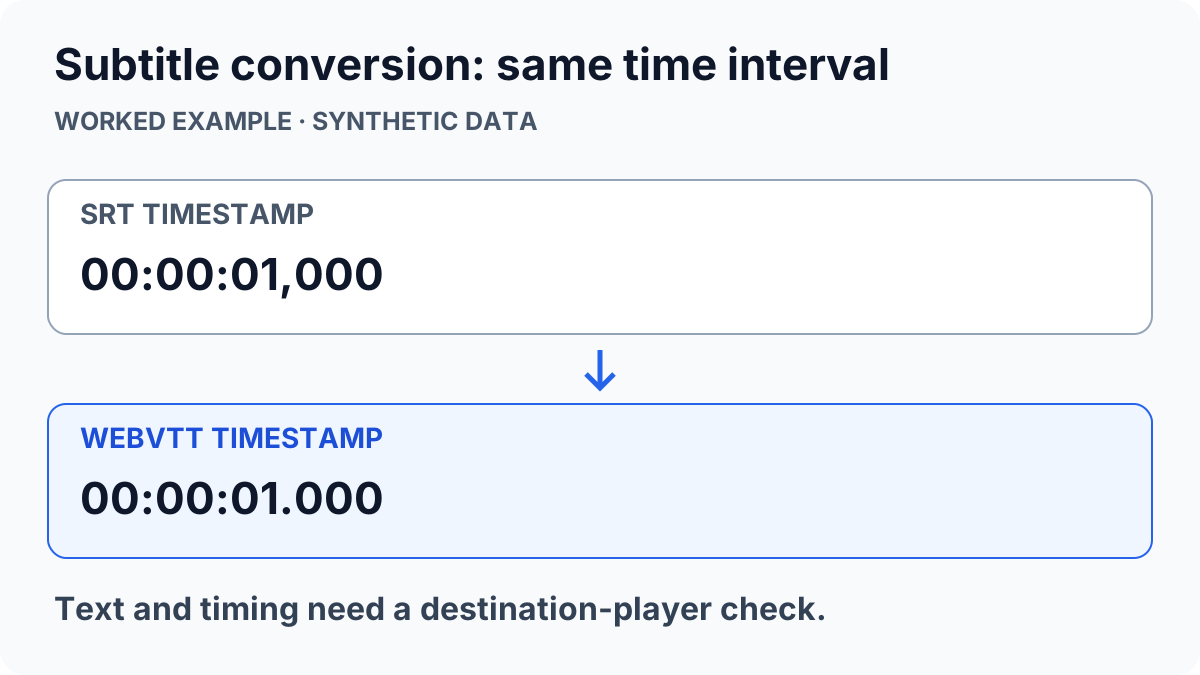
Use one test cue with two lines and a short phrase. Convert 00:00:01,000 --> 00:00:03,500 from SRT to its WebVTT equivalent and check that the 2.5-second interval is unchanged. Do not expect format conversion to recognize speech, translate text or align subtitles automatically to a different video.
Preview the actual output before downloading
Open the SRT and WebVTT converter, choose the direction and paste a non-sensitive example first. Review the output text and timing preview. If you adjust the timing offset, check both the beginning and end of the video: a constant offset does not repair subtitles that progressively drift.
When converting VTT to SRT, keep the VTT source. Check whether the output still conveys speakers and important non-speech sounds. Do not delete text merely because it was associated with a VTT styling or positioning feature; accessibility information should remain understandable even when presentation changes.
Validate with the destination player
Download a copy, confirm that it was actually saved, and load it alongside the intended video. Inspect a normal cue, a multiline cue and a cue near the end. Compare line breaks, emphasis and any placement you relied on. A text preview cannot fully reproduce a video player’s caption layout.
For captions that display broken accented characters, follow the subtitle encoding checklist before changing formats repeatedly. For the basic conversion steps, use the SRT/VTT walkthrough. Keep original files until the converted captions have been reviewed in their real destination.
ToolsWebPro
Practical tool documentationWorkflow examples, tool limitations and links to primary format and platform documentation.
Read full author bio & credentials →Related ToolsWebPro tools
Open the free tool(s) for this guide — no signup required.
Browse all ToolsWebPro tools →More from ToolsWebPro