CSV Opens in One Excel Column? Fix the Separator
Diagnose a CSV that opens in one column. Compare comma, semicolon and tab separators without breaking quoted addresses or decimal numbers.
Use this guide with
CSV Delimiter Converter & Format Fixer
Change a CSV separator and review number or date changes column by column before downloading the result.
Identify the separator before replacing anything
If a CSV opens as one long Excel column, the file’s separator may not match the separator Excel expected. A semicolon-delimited export can contain valid data even when a comma-based import produces the wrong layout. The .csv extension alone does not tell you which separator was used.
Open a copy in a plain-text editor and examine the header and two data rows. Look for a repeated comma, semicolon, tab or pipe between fields. A comma inside an address or a decimal value is not necessarily a field boundary. Avoid a global search-and-replace: it can silently alter legitimate text.
Choose the separator in the import preview
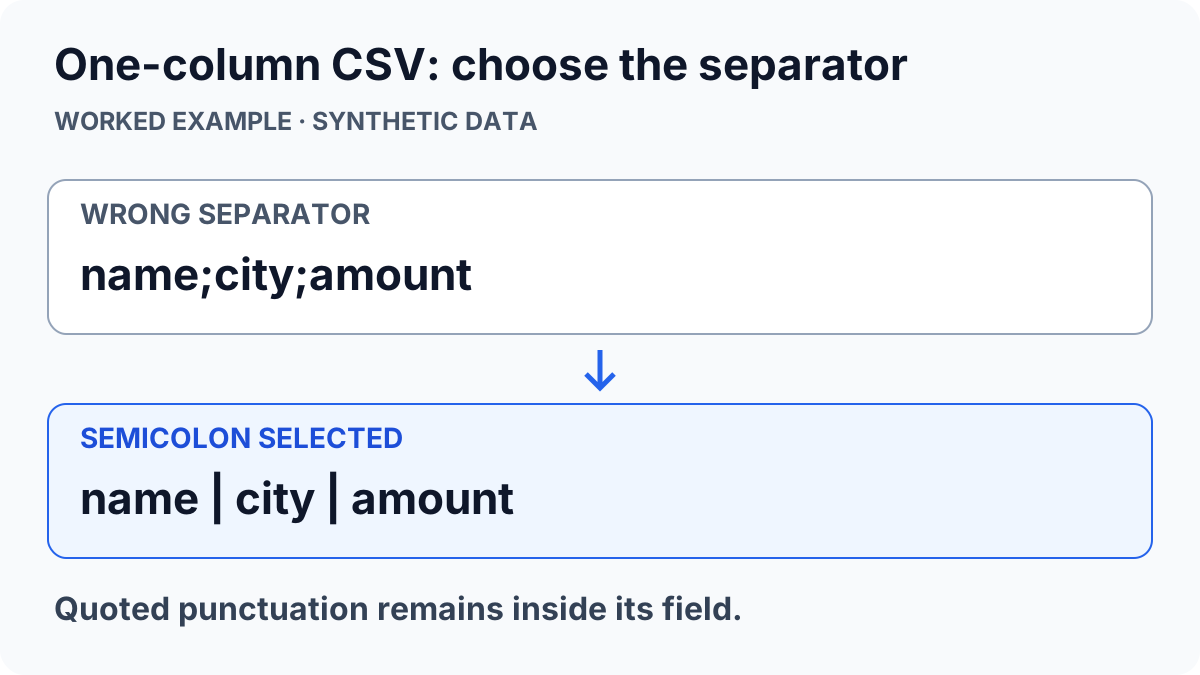
Microsoft’s text and CSV import instructions describe selecting a delimiter during Data → From Text/CSV. Try the likely source separator and inspect how the preview divides the columns. You usually do not need to change the computer’s regional settings for a single file.
For example, name;city;amount is a three-column header when semicolon is selected. A row containing "Example, Ltd";London;12.50 must retain the comma inside the quoted company name. If the preview splits that company name, the chosen separator or source quoting needs attention.
Convert a copy when the receiving app needs another separator
Open the CSV format fixer, paste a synthetic sample or choose your file, and set Input separator explicitly if automatic detection looks wrong. Select the separator required by the receiving application as Output separator. Keep all columns as text while you are fixing only the field layout.
Build the preview and compare the before and after values. Confirm both the number of columns and a quoted field containing punctuation. A file that looks correct in the first row can still contain a malformed quote farther down. Review warnings rather than removing quotes until the preview happens to look tidy.
| Source header | Input choice | Expected columns |
|---|---|---|
| name;city;amount | Semicolon | 3 |
| name,city,amount | Comma | 3 |
| A comma inside a quoted name | Keep valid quoting | One name field |
Check the downloaded copy in its destination
Download the converted copy, then import that copy with an explicit separator. Count data rows and inspect a name, a number and an empty field. Keep the source until the destination has been checked. Starting a download is not confirmation that your browser saved the file successfully.
Delimiter repair does not decide whether 1,234 means a decimal or a thousands-grouped number. That is a separate transformation. Follow the decimal-comma guide only for columns whose source convention is known. Change one setting at a time so you can identify what fixed the layout.
ToolsWebPro
Practical tool documentationWorkflow examples, tool limitations and links to primary format and platform documentation.
Read full author bio & credentials →Related ToolsWebPro tools
Open the free tool(s) for this guide — no signup required.
Browse all ToolsWebPro tools →More from ToolsWebPro