Keep Leading Zeros in CSV Phone Numbers
Stop phone numbers losing leading zeros or turning into scientific notation. Import as text, check a small contact sample and export a clean CSV.
Use this guide with
2 ToolsWebPro tools
Open the free tool(s) below and follow the steps in this guide.
Phone numbers are identifiers, not quantities
A number such as 02079460000 is an identifier. Treating it as a mathematical number removes its first zero. A long international number can also be displayed in scientific notation. Adding quotation marks to a CSV field does not force every spreadsheet application to treat it as text: CSV describes field boundaries, not column types.
Start from the last untouched source export. If a spreadsheet has already discarded digits and the damaged version was saved over the original, a converter cannot know which digits belonged there. A visual format that displays an extra zero is different from actually restoring the original text.
Import the column as text before editing
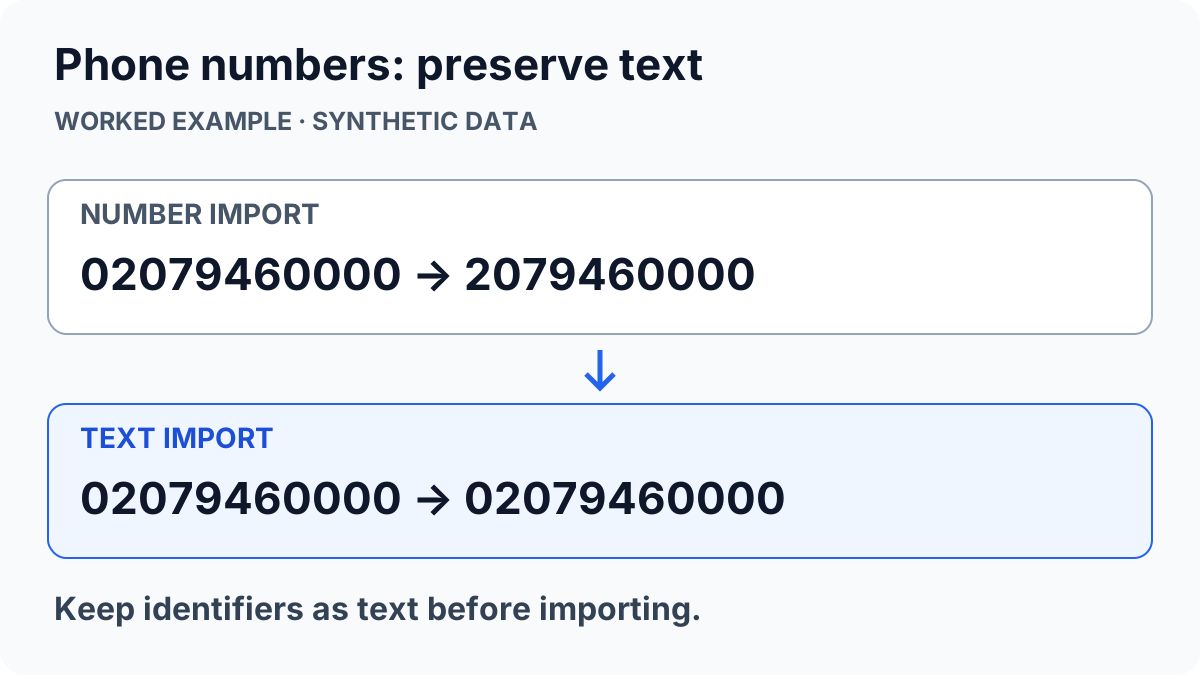
In desktop Excel, use Data → From Text/CSV and inspect the preview instead of immediately double-clicking the file. Set the phone column to Text in the import or transformation step. For new entries in a worksheet, format that column as Text before pasting. Menu availability differs by Excel version; Microsoft explains the options in its leading zeros guidance.
For a contact list, keep phone numbers, postal codes and account-like identifiers separate from columns that genuinely need arithmetic. Do not automatically apply a number conversion to the entire sheet. In the CSV format fixer, leave identifier columns as Keep as text and inspect any leading-zero warning.
Use a small synthetic contact as a check
Try a made-up contact called Alex Example with the phone text 02079460000. Check the actual field in a plain-text editor, then import it into a spreadsheet as text. The value must still begin with zero. If your destination requires an international prefix, obtain the correct country code from your records rather than guessing it from the length of the number.
In the CSV to VCF converter, map that column to the intended phone field and generate a test vCard. Import only the synthetic contact first. Confirm its name and phone number in the destination contacts app before preparing real contacts. Importing a test does not certify every destination or every field.
| Check | Expected result |
|---|---|
| Original CSV | 02079460000 remains complete |
| Spreadsheet import | Phone column is Text |
| Test contact | Phone matches the source character for character |
Finish without reintroducing the problem
Save a separate working copy and inspect the exported CSV as text before reopening it in Excel. Reopening with automatic type inference can make a correctly exported file look broken again. The export itself and the next application’s import are two separate steps.
Keep your original contact export and avoid repeated bulk imports while troubleshooting; they can create duplicates. This workflow preserves information that still exists. It cannot recover lost digits, validate a person’s phone number or determine permission to contact them. The broader Excel contacts import guide covers the full conversion workflow.
ToolsWebPro
Practical tool documentationWorkflow examples, tool limitations and links to primary format and platform documentation.
Read full author bio & credentials →Related ToolsWebPro tools
Open the free tool(s) for this guide — no signup required.
- CSV to VCF ConverterConvert an Excel or CSV contact list into one .vcf file for iPhone, Android or Google Contacts, or turn a VCF back into CSV. Runs in your browser.
- CSV Delimiter Converter & Format FixerChange a CSV separator and review number or date changes column by column before downloading the result.
More from ToolsWebPro